An agent is an editable definition: identity and role, mission, tools or capabilities, model choice, behavior, and output contract. The native team contains ten editable agents. Orchestrator, Planner, Researcher, Developer and Reviewer start enabled. UI/UX Designer, Documentator, DevOps, Ticketer and Git Manager start disabled. A name or template does not grant runtime privileges. Stop all active requests before saving team changes or deleting an agent; wait for finishing work before retrying a blocked save.
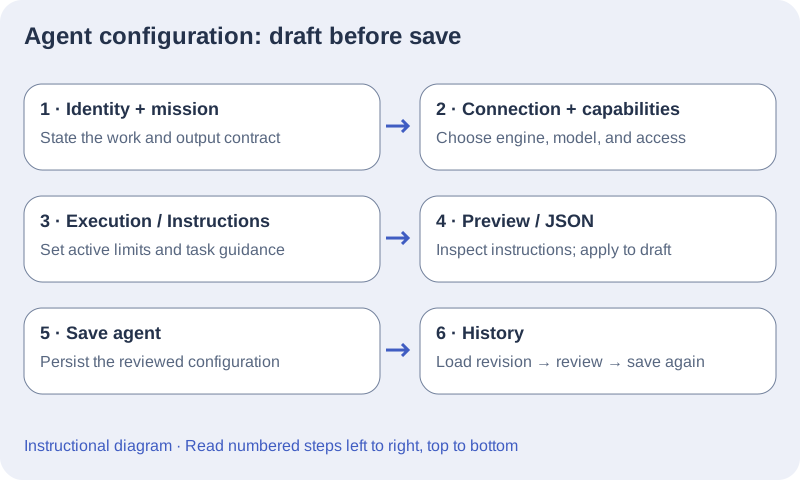
Create an agent
- In Settings → Agents, choose Add agent. Under Start from a template or existing agent, pick Blank specialist, a specialist template (UI/UX Designer, Git Manager, DevOps or Ticketer), a Reference team agent, or a copy of an agent already in This team. You can also use Create with AI: it accepts a 10–6,000-character description and creates one draft configuration; it does not inspect or execute your project.
- Set the identity, role, mission, visual appearance, and model. Keep Workspace default when the project connection is sufficient; Codex CLI and Claude Code agents can also set their own reasoning effort.
- Choose capabilities. Vopit-managed agents use Vopit project tools; native CLI agents use Native project access, where Editing & validation and Git changes require Project inspection and Web research does not. Claude Code agents also have MCP servers. Every engine has Vopit actions (Create requests), Git actions, Board actions and Infrastructure. An agent can hold at most 20 selected actions.
- Write an output contract that asks for implementation evidence, validation evidence, a verified no-change result, or concrete blockers as appropriate. Save the agent.
To change an existing agent, open Edit agent. Duplicate makes an independent editable copy, and Restore Vopit preset loads the current Vopit defaults for that kind of agent into the draft.
Use instructions and advanced settings deliberately
The editor separates Execution, Instructions, Automation, Coordination when applicable, Advanced, History, Preview, and JSON. Priority selects a coordinator; it does not turn specialists into coordinators. Settings that only apply to another engine remain stored when you switch engines. Retired compatibility fields are not active routing controls.
In Execution, Timeout measures is Time without progress by default: the timer restarts whenever the agent or its tools advance. Total active execution time sets a strict duration instead. Pauses and permission waits are excluded in both modes. An empty Timeout (milliseconds) inherits the Settings → Advanced default. In Automation, When to run offers When assigned by the orchestrator, After a request completes successfully, or Before / after project work.
{
  "version": 1,
  "execution": {
    "timeoutMs": 600000
  }
}Preview and export the effective configuration
- Open the agent inspector, choose Edit agent, and select Preview under Agent configuration.
- Read Effective system instructions. For Codex this is the Vopit portion; Codex adds its own instructions and tool definitions. The task and relevant handoffs are supplied later, per stage.
- In JSON, use Export active configuration to download the current connection configuration with the name, role, mission, and connection kind. Review the file before sharing it.
- To edit JSON, provide an active configuration section, choose Apply JSON to draft, inspect the other tabs, then Save agent. A parse or validation error leaves the saved agent unchanged; correct the draft and apply again.
Restore a revision or a Vopit preset
- Before changing a working agent, export its active configuration and note the current connection. Stop all active requests and wait for finishing work before saving team changes.
- Open History and select Load revision beside the desired saved version, or Restore original configuration. This loads a draft; it does not apply immediately.
- Check identity, mission, model, tools, and engine-specific settings, then Save agent. Restoring creates a new revision and retains prior history.
- Use Restore Vopit preset when you want the defaults for this behavior kind. This can replace the draft mission, role, tools, model, and behavior. Cancel to discard it, or review and save deliberately.
- Verify with a bounded request. If the result regresses, load the previous revision and save again.
Enable, organize, duplicate, and delete teammates
- Close the agent inspector to see YOUR TEAM. Use the On/Off switch to control eligibility for new requests; disabled agents stay visible on the floor.
- Keep an enabled workflow coordinator and the specialists needed by your requests. Move workstations to organize the visual room; position does not set routing priority or privileges.
- To make an independent editable copy, open Edit agent and choose Duplicate. Check the copy’s mission, connection, and grants, then Save agent.
- To remove an agent, stop active work, export anything you need, open Edit agent, choose Delete agent, and confirm Remove this agent? Treat deletion as permanent; the UI does not provide an undelete action.
Export or import a project team
- In Settings → Studio, choose Export team and scene and save the JSON file in approved storage.
- In a new project, choose Import team during onboarding, then Choose a team file. Choose a source project copies the studio of another Vopit project folder; Recover previous workspace, when offered, brings back the studio of the project opened before. The same options remain available in Settings → Studio.
- The file keeps agents, behaviors, models, Cranks, the scene (workstation positions, furniture with its notes, and rooms) and connection configuration. It removes infrastructure access and does not include API keys, Crank credentials, request history, or revisions.
- Review the confirmation before choosing Recover. Sections present in the file replace this project’s agents, Cranks, scene and connections; sections absent from an older file stay unchanged. Imported Cranks start disabled and set to Ask before each execution. Vopit keeps a backup of the current configuration.
- After import, restore the required connection credentials, reassign infrastructure access deliberately, and review Cranks before enabling them. Run a bounded request before relying on the imported team.
Templates, missions and output contracts
Add agent offers Blank specialist, four specialist templates (UI/UX Designer, Git Manager, DevOps and Ticketer), the other Reference team agents (Orchestrator, Planner, Developer, Researcher, Reviewer, Documentator) and This team, which copies an agent already in your project. To create a second Developer or Planner, pick it under Reference team or This team. Create with AI uses the active project connection to generate an editable draft, including other specialist missions. It does not execute project work, grant infrastructure targets or replace Save agent. The native team contains ten agents, with five optional specialists initially disabled. The creation template list is separate from the native team.
| Contract | Responsibility |
|---|---|
| workflow | Choose teammates semantically, provide dependencies and public selection rationale; this enables Coordination settings. |
| preparation | Deliver an actionable plan, research or lifecycle handoff. Future downstream implementation is not a blocker for that handoff. |
| verdict | Report completion or concrete changes requested against the assigned deliverable and configured evidence checks. |
Mission and instructions guide the model; they are not canned responses. Execution defines the evidence and completion contract. Active JSON contains only fields applicable to the effective engine. Identity/mission editing, an exported active-configuration wrapper and an importable team JSON file are distinct surfaces. History restores a saved original/revision into a draft; Restore Vopit preset loads the current behavior preset for its family. Review the draft and Save agent to record a new revision.